
AI SWING ANALYSIS
AI golf swing analysis. See the movement. Plan your practice.
Tokti Golf combines a pose display for following body movement with AI coaching that explains a selected swing video. Review the original clip, identify one practice goal, then record again under comparable conditions.
- Skeleton overlay
- AI phase analysis
- Coaching & drills
Swing player
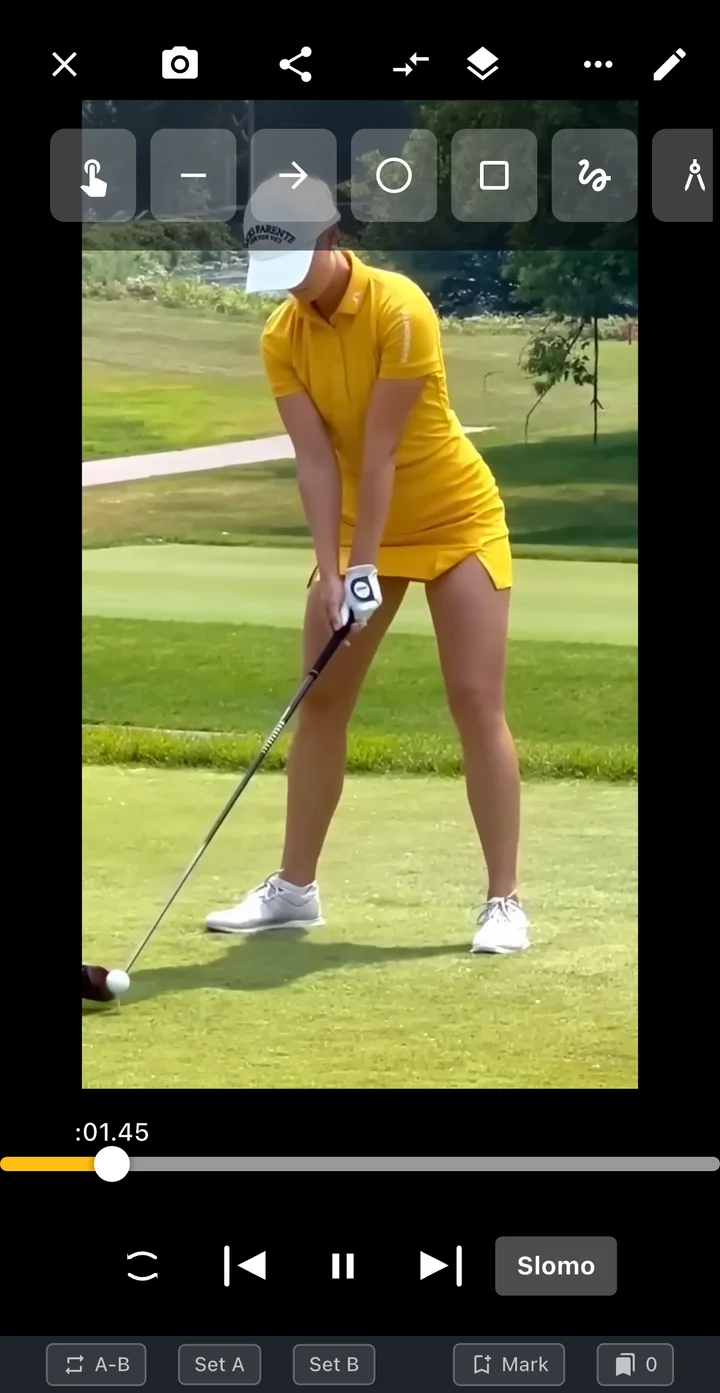
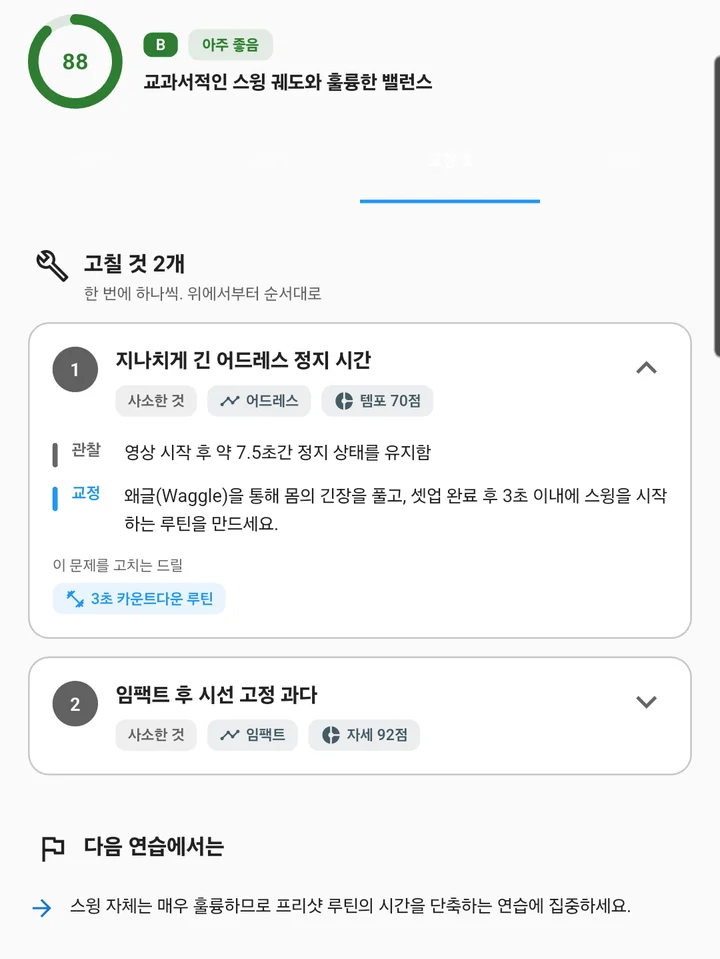
AI coaching report
AI & skeleton
What you can do
Joints detected by pose AI
A pose model estimates key points on your body and connects them as a skeleton. Review shoulder and hip lines and joint movement over the video.
A swing explained by video AI
Choose a clip and club. AI reviews the movement and organizes phase observations, posture, tempo and other items into a coaching report.
From feedback to your next practice
Review priority coaching points and the drills connected to them. Record again and revisit results for the same club to continue your practice.
AI & skeleton
How it works
Pose AI shows movement with joints and lines. AI coaching explains what it observes.
Get the app-
01
Record or open your swing
Prepare a video with your full body and club visible. Supported camera screens offer a live pose and skeleton setting.
-
02
Inspect the skeleton
Enable pose display in a supported player and step through frames to inspect the shoulders, hips, arms and legs.
-
03
Choose your clip and club
In AI Golf Coaching, choose driver, iron, wedge or putting, confirm the camera view and clip range, then start analysis.
-
04
Review, practise and record again
Read phase observations, priority coaching points and drill instructions before recording your next swing.
A skeleton overlay and a coaching report do different jobs
A skeleton overlay connects detected body landmarks so you can follow the shoulders, elbows, wrists, hips and knees through the swing. Occlusion, a cropped body or an unclear frame can interrupt the display. A visible line is an estimate from the image, not proof of an ideal position.
AI coaching explains the selected clip and suggests areas to work on. Match each observation to the original video before deciding what to change. Use the overlay to see movement and the report to frame a question; neither should replace checking what the camera actually captured.
Read the observed phase before comparing a score
Choose the club category that matches your clip: driver, iron, wedge or putting. Set the viewing direction and decide what you want to understand. A focused question such as what happens after the top of the backswing gives you a clearer way to read the report.
Connect strengths, phase observations, correction points and practice drills. Return to the address, backswing, transition, downswing or impact sequence mentioned in the report. A useful takeaway identifies an observable change for the next recording, rather than relying on a single overall score.
Turn one observation into a repeatable practice loop
Keep a baseline swing. Pick one priority, try the relevant drill and record again using the same club and camera direction. Changing several movements and the recording setup together makes it harder to understand what improved.
Compare similar swing lengths and corresponding positions in the two clips. Note whether the movement you planned to check has changed. If the result looks inconsistent, review the camera setup and original footage, then discuss the relevant clip with an instructor when helpful.
Understand what a single camera can show
Lines and apparent angles depend on camera placement. Moving or tilting the camera can make the same motion look different. Video posture review is not equivalent to radar measurements of ball speed, spin or launch angle, or calibrated three-dimensional motion capture.
Keep the golfer and club in view with sufficient light and a stable camera. A slow replay cannot recover detail absent from the recording. Coaching availability and usage conditions are shown in the app; this guide does not promise unlimited analysis or a guaranteed score improvement.
AI & skeleton
Choose the right review tool
| Tool | Useful for | Keep in mind |
|---|---|---|
| Pose overlay | Following visible body landmarks | Camera angle and occlusion affect estimates |
| AI coaching | Observations and practice priorities | Check explanations against the original |
| Slow motion / frames | Inspecting a specific swing phase | Detail depends on the source recording |
| Two-video comparison | Reviewing a change over time | Align camera conditions and swing positions |
AI & skeleton
Before you start
- Capture the full body and club
- Keep the camera stable and level
- Choose the matching club category
- Include address through finish
- Read observations alongside the original
- Repeat one drill and record a comparable clip
Troubleshooting
- The skeleton jumps or disappears
- Check for cropped limbs, occlusion, poor light or other people in the frame. Start with a clearer clip.
- Two reports seem different
- Compare the club, recording direction and selected segment first. Avoid treating scores from different conditions as directly comparable.
- The suggested change is unclear
- Find the cited phase in the original video and choose one observable practice target.
- The impact frame is blurred
- Use a better-lit recording and a capture mode supported by your device. Slow playback does not create missing source detail.
AI & skeleton
Make it part of your round
Revisit a point from your lesson
Use the skeleton and frame steps to find the movement, then review it alongside the AI coach’s observations.
Give solo practice a direction
Pick a priority point and drill from the report. Record again with the same club and keep your practice history.
Is the skeleton the same as AI coaching?
No. The overlay shows detected body landmarks; coaching explains the clip and proposes practice priorities.
Where do I start AI coaching?
Open the AI golf coaching entry in Golf Tools, choose a suitable clip and follow the setup shown in the app.
Can I compare before and after practice?
Yes. Keep the club, direction and camera placement comparable, then align the same swing phase.
Does the app measure ball speed or spin from this view?
This guide describes video posture review, not launch-monitor measurements of ball speed, spin or carry.
Is every AI result definitive?
No. Check the observation against the original footage and the conditions in which it was recorded.
Is AI analysis unlimited and free?
Check the current availability and usage or payment conditions in the app. This page does not promise unlimited free analysis.
Official references
External resources for understanding the workflow. They do not imply endorsement of Tokti Golf or a technology-supplier relationship.
- Google ML Kit — Pose detection
Background on detecting body landmarks and the importance of clear source images.
- V1 Sports — How to Analyze a Video
An introduction to reviewing golf footage with visual analysis tools.
TOKTI GOLF
Take a closer look at your swing.
See your pose with a skeleton and plan your next practice with AI coaching in Tokti Golf.
iOS · Android · Free to download · Ads and in-app purchases
Explore the app